
This checklist provides a high-level overview of steps to take to transition from face-to-face to online learning with Canvas.
Step 1: Review support resources within Canvas.
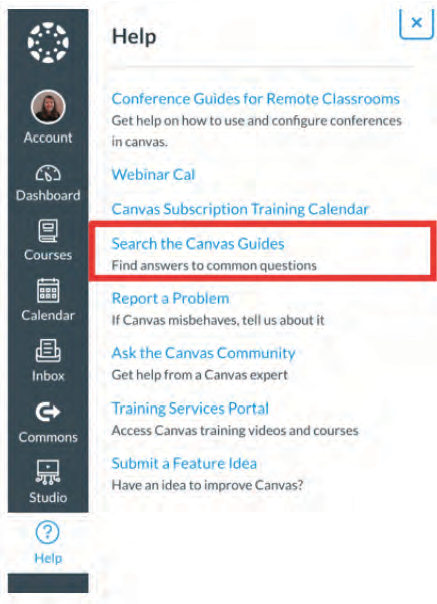
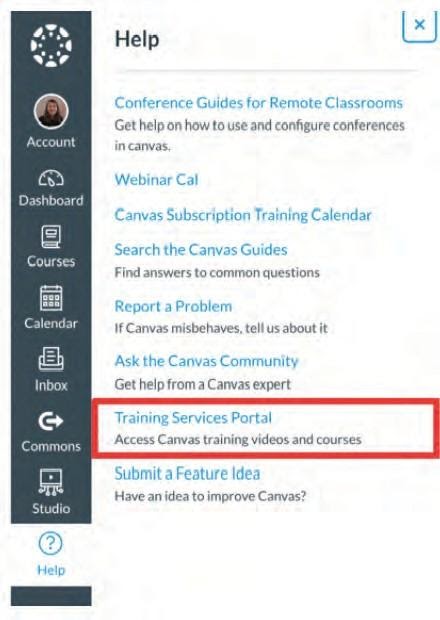
- Go to the Canvas Dashboard and click on the “Help” button to access a range of helpful resources and The Training Services Portal.
Step 2: Watch the tutorial
- Watch Preparing to Launch and make a plan
- Identify a topic. What topic/unit/project will be the focus and what resources are available?
- Identify practice. How will students practice with the information they are learning?
- Identify the work. What should students to submit to show they’re learning your content?
Step 3: Set up a course
- Review tutorials for building courses and managing course content.
- Watch the video for course setup. It all starts with Modules which help organize content to control the course flow.
- Create a Module in Canvas and add content to it.
- Content can be a Page or any of the resources listed from the plan.
- The Rich Content Editor provides tools to create and embed custom content (including video and audio) into Announcements, Assignments, Discussions, Pages, and Quizzes.
- Create Assignments for everything students will be graded on during the semester, such as quizzes, papers, participation, attendance, exams, etc.
- Watch the video
- Creating an assignment adds a column in the gradebook for the assignment.
- If students are doing assignments online, create a page with instructions of what you’d like them to do.
Step 4: Enroll students.
- If the institution has not automatically added students, there are three ways to do it:
- Once students are enrolled, encourage them to customize their profile and notification preferences.
Step 5: Publish
- Publish the modules to enable students to see the content inside of the course.
- Publish the course to give students access to the course on their dashboard.
For more information visit the Canvas Community site for drill down guidance on each feature: Getting Started with Canvas as an Instructor.
Comments
Please sign in to leave a comment.